

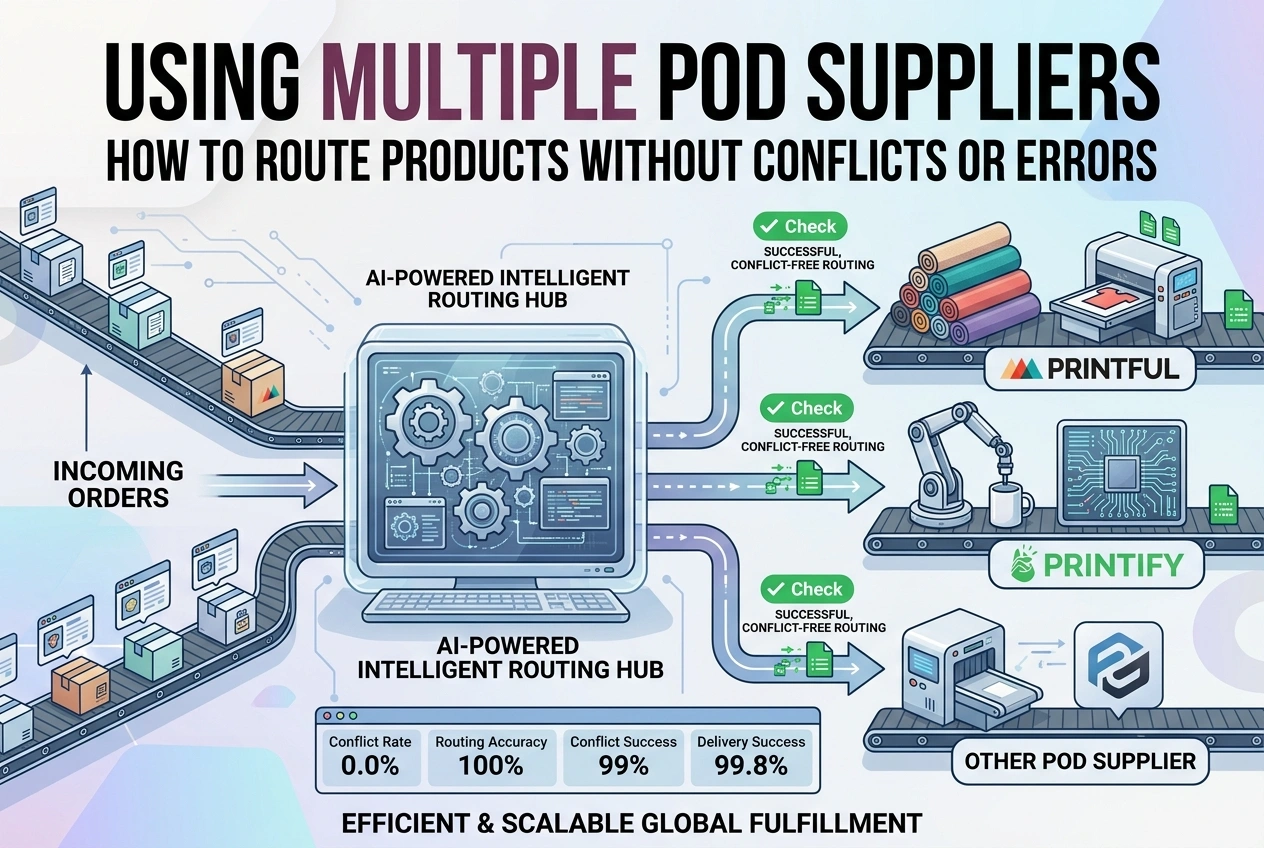
Using Multiple POD Suppliers: How to Route Products Without Conflicts or Errors
Most new Print on Demand sellers start with one supplier. It seems simple — one account, one integration, one dashboard. Until that supplier runs out of stock, raises prices, misses deadlines, or produces inconsistent quality. Suddenly your entire business is vulnerable to decisions you cannot control.
Using multiple suppliers protects your store, keeps prices competitive, and expands what you can offer. But it also introduces complexity: which product goes to which supplier, how orders route automatically, how to avoid duplicate orders, and how to keep listings synchronized. This guide explains exactly how to manage multiple suppliers cleanly, reliably, and without daily manual work.
Why Use Multiple Suppliers?
- Backup and reliability: If Supplier A is out of stock or delayed, your store continues selling through Supplier B. No lost sales.
- Best price per product: Supplier A is cheaper for t-shirts. Supplier B is cheaper for mugs. Supplier C offers better shipping to your biggest market. You route each product to the best provider.
- Better product selection: Different suppliers offer different items. One may sell premium hoodies, another offers wall art, and a third provides custom packaging.
- Quality comparison: Test identical products from different suppliers. Gradually shift more volume to the highest quality, most reliable provider.
- Regional advantages: Some suppliers ship from your customer's region. Domestic shipping means faster delivery, lower cost, fewer customs issues.
Potential Risks — And How to Avoid Them
Multiple suppliers create three specific risks. If you understand these upfront, you can set up your store to avoid them entirely.
- Double orders: One customer order accidentally sent to two suppliers. You pay twice and must resolve the mess. Prevention: Assign each product to ONE supplier only. Never connect the same listing to multiple providers.
- Conflicting shipping rates: Different suppliers charge different shipping amounts. If your store cannot calculate the correct rate per product, you lose money. Prevention: Enable live shipping rates from each supplier separately, or build average shipping costs into product prices and offer free shipping.
- Inconsistent listings: Same product listed with different descriptions, sizes, or mockups. Prevention: Keep one master listing. When supplier changes, update quietly. Do not create duplicate listings.
Step 1: Assign Products to Suppliers Strategically
Do not guess. Create a simple spreadsheet once, then follow it forever. This is your routing master plan.
How to Decide Which Supplier Makes What:
- Product specialization: Supplier A excels at apparel. Supplier B specializes in mugs and posters. Supplier C offers premium materials. Match product category to supplier strength.
- Cost comparison: Calculate total landed cost — product price + shipping to your typical destination + tax + your markup. Assign each product to the lowest-cost reliable supplier.
- Shipping destination: If most customers are in the US, use US-based suppliers. If you sell heavily in Europe, route those orders to EU-based facilities. Domestic shipping wins every time.
- Availability and reliability: Which supplier keeps stock consistently? Which meets production deadlines? Route your best-selling, highest-volume products there.
Example Routing Table:
| Product Category | Primary Supplier | Backup Supplier | Reason |
|---|---|---|---|
| Standard T-Shirts | Printful (US) | Printify | Consistent quality, fast US shipping |
| Premium Hoodies | Printify Premium | Printful EU | Better wholesale pricing |
| Mugs & Drinkware | Printful EU | Printify | Lower cost to international buyers |
| Posters & Wall Art | Printify | Printful | Wider size selection, better pricing |
| All International Orders | Nearest Facility | — | Automatically routed to closest print location |
Rule: One Product = One Primary Supplier + One Backup Supplier. Never assign the same product to two active integrations simultaneously.
Step 2: Set Up Your Store Without Conflicts
Shopify Setup:
Shopify supports multiple POD integrations natively. Each integration works independently.
- Install and connect Printful → Create products in Printful → Push to Shopify → These products route ONLY to Printful
- Install and connect Printify → Create products in Printify → Push to Shopify → These products route ONLY to Printify
- Install and connect CJ Dropshipping → Create products in CJ → Push to Shopify → These products route ONLY to CJ
- Each integration listens ONLY to its own products. No overlap, no double orders.
CRITICAL RULE: Create each product in ONE supplier dashboard only. Push it from there to Shopify. Do not push the same product from two suppliers. Shopify cannot tell which one should fulfill it.
WooCommerce Setup:
Each supplier provides its own plugin. Install all plugins, but assign products carefully.
- Install Printful Plugin → Connect → Create products in Printful → Sync to WooCommerce
- Install Printify Plugin → Connect → Create products in Printify → Sync to WooCommerce
- When editing a product in WooCommerce → Look for "Fulfillment by" field → Assign to exactly one supplier
- Each plugin fulfills only products marked for it
CRITICAL RULE: Verify the "Fulfillment by" dropdown on every product. If blank or incorrectly assigned, orders will not send. If assigned to both, errors occur.
Etsy Limitations:
Etsy does not support multiple POD integrations cleanly. One integration typically claims all orders. Workaround:
- Option A: Create separate listings per supplier. Manually copy order details to the correct supplier dashboard.
- Option B: Use Shopify or WooCommerce for multi-supplier automation. Link Etsy to your external store.
Step 3: Shipping Rates and Pricing
Different suppliers charge different shipping rates. This is the most common source of profit loss.
Option A: Live Shipping Rates (Recommended)
Let each supplier send their exact shipping cost to your store automatically.
- In each supplier integration → Enable "Retrieve live shipping rates"
- Your store displays the correct rate based on which supplier fulfills that specific product
- Customer pays exactly what you pay. Zero risk.
Requirement: Your store platform must support multi-supplier live rates. Shopify and WooCommerce do this reliably.
Option B: Build Shipping Into Price + Free Shipping
Calculate average shipping cost per product. Add it to the price. Offer free shipping everywhere.
- Pros: Simplest checkout, no rate conflicts, higher conversion
- Cons: You absorb cost differences. Lose money on expensive international orders.
- Best for: Domestic-focused stores with consistent shipping costs.
Step 4: Backup and Switching Workflow
Your backup supplier exists for when your primary cannot fulfill. Here is how to switch without rebuilding listings.
- Product is listed and selling → Primary supplier runs out of stock
- Mark product "Temporarily from alternate supplier" if needed
- Create the SAME product in your backup supplier dashboard
- Disable the primary integration for that specific product
- Enable the backup integration for that product
- Update shipping rules if rates differ
- When primary restocks → Switch back quietly
Because you already have the design file and product listing, switching takes 5–10 minutes. No new photos, no new descriptions, no new URLs. Customers never notice.
Step 5: Centralized Order Management
With multiple suppliers, orders arrive in different dashboards. You need one place to monitor everything.
What to Monitor:
- Which order goes to which supplier — visible in your store dashboard
- Order status updates: Pending → Sent to Supplier → Printing → Shipped
- Tracking numbers returned from each supplier
- Stock levels at each supplier — catch shortages before they pause sales
Tools That Help:
- Shopify Orders Page: Shows fulfillment location or app used. Filter by "Fulfilled by Printful" or "Fulfilled by Printify."
- Zapier or Custom Automation: When order is created → Look at product → Route to correct supplier automatically. Advanced but very powerful.
- Spreadsheet Log: Record every order, supplier, cost, and shipping. Review monthly to see which supplier performs best.
Common Mistakes and Troubleshooting
- Orders not sending to supplier: Check "Fulfillment by" assignment on that specific product. If blank or wrong, order sits unfulfilled. Fix assignment and manually send the order.
- Shipping rates missing or wrong: Each supplier must have live rates enabled AND configured in your store shipping zone settings. If one product shows no shipping, that supplier's rates are not enabled for that destination.
- Same product pushed twice: If you see duplicate listings, delete them. One product = one listing = one supplier integration. Delete duplicates and repush from correct supplier.
- Tracking not syncing: Some integrations return tracking automatically. Others require manual copy-paste. Check every new integration for 3–5 orders to confirm tracking flows back.
- Price differences: If backup supplier costs more, update your store price OR absorb difference temporarily. Never fulfill at a loss without knowing it.
Recommended Starting Workflow
- Create your routing spreadsheet: Product → Primary Supplier → Backup Supplier → Cost → Shipping
- Install and connect all suppliers to your store
- Create products in each supplier dashboard → Push to store → Verify "Fulfilled by" shows correctly
- Enable live shipping rates from each supplier
- Place 2–3 test orders to confirm: Correct supplier receives order → Tracking returns → Customer notified
- Monitor daily for first 2 weeks → Catch routing errors early
- Review monthly: Which supplier is cheaper? Faster? Better quality? Shift more volume gradually.
Summary
- One product, one primary supplier. Assign each listing to exactly one integration. Use a spreadsheet to track your routing plan.
- Backup supplier defined but inactive. Ready to switch in 5–10 minutes when needed. Never connect both at once.
- Live shipping rates enabled everywhere. Let each supplier send their exact cost. Customer pays the real amount. Zero surprises.
- Test everything. Place test orders. Verify routing, shipping, and tracking. Fix errors before they become customer problems.
- Review and shift. Every month compare supplier performance. Gradually move more products to the best provider. Your business improves over time.
Multiple suppliers give you control. You are no longer tied to one provider's decisions. But that control requires organization. Assign clearly, test thoroughly, and keep one master plan. When you do it right, customers never know multiple suppliers exist — they just see a reliable store that always has stock, ships quickly, and delivers consistent quality.